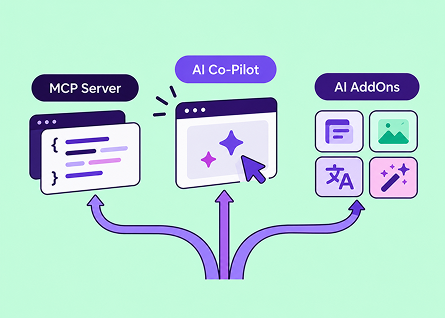
When we say you can build “anything” with Beefree SDK's MCP Server, we mean it, but “anything” is hard to plan a sprint around, so here are three real builds you can add to your product: generating one on-brand email inside the editor, building a full email sequence in the background, and handing work from your own agent to the built-in agentic AI Co-Pilot. You'll get the session setup, the config details, and the snippets to get you moving.
If you'd rather jump straight into code, our demo repo has a working app you can clone and run locally.
Before you start: Pick your session type
Every MCP Server workflow runs on a template ID, and your agent uses that ID to know which design it's working on. How you get the ID depends on whether the editor itself will be open in your desired implementation and whether co-editing is enabled on your account.
Once you have the ID, point your agent at the MCP endpoint, authenticate with your Content Services API key, and pass the template ID in a header.
Endpoint:      https://api.getbee.io/v2/sdk/mcp
Authorization: Bearer <YOUR_CONTENT_SERVICES_API_KEY>
x-bee-template-id: <templateId>
FYI: editor-managed sessions have a hard 10-minute timeout regardless of activity, and they also close when a new template loads in the editor, so call startMcpSession() on every iteration of your agent rather than holding one session open. API-managed sessions stick around much longer, with an idle TTL of up to 33 hours. You'll find full lifecycle details in the MCP Server setup docs.
Recipe 1: Generate one on-brand email in the editor
Use this when your users want to prompt an email into existence and watch it build live, without it coming out in the wrong shade of red.
The trick to keeping the generated design on brand isn't in the prompt, it's in how you configure Brand Rules. In the webinar demo, the prompt was just "monthly newsletter" with a note on the CTA, yet every color, font, and button style came out on brand.
Brand Rules have three parts:
- Presets are approved styles covering content blocks, rows, columns, and the email's settings. Once they're defined, the agent has to pick one. Give a block type several presets with descriptions, like a primary and a secondary CTA, so the agent chooses the right one for the job.
- Permissions control what the agent can touch, using noAdd, noUpdate, and noDelete per block type.
- Limits cap how much content a design can hold, with settings like rows.max, columns.maxPerRow, and blocks.maxPerType.
For an editor-managed session, set brandRules at the root of your editor config, and startMcpSession() picks them up automatically. If you need different rules for a specific session, pass them directly to override the defaults:
// Editor config (applies to every session)
const beeConfig = {
  // ...your existing config
  brandRules: { /* presets, permissions, limits */ },
};

// Or override for one session
const { templateId } = await bee.startMcpSession({
  brandRules: { /* session-specific rules */ },
});

// Hand templateId to your agent via the x-bee-template-id header
The same brandRules object works across the MCP Server and the AI Co-Pilot, so you can define your users' brand once and reuse it in both. Before you ship, test a payload against POST /v2/sdk/mcp/template/validate to verify you configured Brand Rules correctly. Brand Rules are available on Superpowers and Enterprise plans.
Recipe 2: Build a headless onboarding sequence
Use this when you want your agent to generate a full campaign in the background, with no editor interface open, while every email still looks like it belongs to the same brand.
In the demo, we asked for an onboarding campaign and received three emails back with the same header, footer, and styling. The setup is simpler than it looks:
- A planning agent reads the request and proposes the emails in the sequence.
- A layout agent builds one baseline template with the shared structure, like the header, footer, and brand styles.
- Three generation agents run in parallel, and each one opens its own API-managed session starting from that same baseline, so they only change what should differ between emails.
Starting every session from the same template is what keeps the sequence consistent, and it's a single field in the request. Create each session with a POST, and pass the baseline plus anything else the agent should respect:
const res = await fetch('https://api.getbee.io/v2/sdk/mcp/template', {
  method: 'POST',
  headers: {
    Authorization: `Bearer ${CS_API_KEY}`,
    'Content-Type': 'application/json',
  },
  body: JSON.stringify({
    template: baselineTemplate,   // start from your shared layout (omit for a blank template)
    brandRules,                   // same object as Recipe 1
    mergeTags,                    // e.g. first name, plan, trial end date
  }),
});

const { templateId } = await res.json();
// Connect your agent to https://api.getbee.io/v2/sdk/mcp with x-bee-template-id: templateId
When the agent's done, fetch the finished design:
const design = await fetch(
  `https://api.getbee.io/v2/sdk/mcp/template/${templateId}`,
  { headers: { Authorization: `Bearer ${CS_API_KEY}` } }
).then((r) => r.json());
From there, the JSON is yours to work with: convert it to HTML or PDF with the Content Services API, save it for your users, or open it in the editor for a human pass. If you'd like to see the whole flow running, the campaign generator in the demo repo plans and builds multi-email sequences in parallel, onboarding preset included.
Recipe 3: Hand off from your agent to the AI Co-Pilot
Use this when your users start a design somewhere else, like a chat inside your app but outside of the editor, and you want them to continue inside the editor without losing the conversation.
We call this agent-to-editor handoff: an agent outside the builder creates a design and a conversation, then passes both into the embedded editor so your user picks up the same chat and the same template inside the AI Co-Pilot. In the demo, Marco generated a newsletter outside the builder, opened it in the editor with the full chat intact, and kept iterating from there, renaming the company, fixing some unrealistic numbers, and selecting elements on the stage so the Co-Pilot knew exactly what to restyle.
The AI Co-Pilot is available on every paid plan, and you turn it on in the Developer Console in seconds with your OpenAI, Anthropic, or Gemini key. The handoff itself comes down to three settings:
- initialMessages loads your existing conversation into the Co-Pilot, so the chat history comes along with the design.
- onInfo sends you the updated history every time it changes (code 1010), so you can save it and restore it the next time your user opens the builder.
- toggleAgent opens the Co-Pilot panel right away, so your user doesn't have to go looking for it.
const beeConfig = {
  // ...your existing config
  addOns: [
    {
      id: 'ai-agent',
      enabled: true,
      settings: {
        initialMessages: savedMessages, // the conversation from your agent
        brandRules,                     // same object as Recipes 1 and 2
      },
    },
  ],
  onInfo: (info) => {
    if (info.code === 1010 && info.detail?.handle === 'ai-agent') {
      saveChatHistory(info.detail.messages); // persist for next session
    }
  },
};

await bee.start(beeConfig, templateFromYourAgent);
bee.execCommand('toggleAgent'); // open the Co-Pilot panel
A few other settings are worth knowing about while you're in there. onInfo also reports token usage per request (code 1000), which is handy if you bill AI usage back to your customers, and hooks.aiAgentBeforeSend lets you check a prompt against your own policies, like a DLP service, before it reaches the model. You can also tune maxIterations, add promptStarters for empty chats, and customize the systemPrompt on Superpowers and Enterprise. The AI Co-Pilot docs have the full reference, and if you're thinking about where humans fit into this flow, Human-in-the-loop AI for content builders is a good companion read.
Cut token costs with Code Mode
All three demos above ran in Code Mode, which becomes generally available on December 3 for Essentials, Core, Superpowers, and Enterprise plans. Instead of giving your agent 33 separate tools and re-sending their definitions every turn, Code Mode gives it a single tool that accepts a TypeScript script, so the agent can chain operations, use variables, and make dozens of changes in one round trip. It cuts token costs significantly, with our benchmarks showing a reduction of 68% to 96% depending on the model and complexity, with most results in the 85-95% range.
Switching is a one-line change, since you point your agent at a different endpoint while keeping the same API key, Brand Rules, reusable rows, and File Manager settings:
https://api.getbee.io/v2/sdk/mcp/codemode
The AI Co-Pilot already uses Code Mode under the hood, so there's nothing to change there.
For our benchmarks across five models and three levels of email complexity, see Building AI agents for email creation: Best practices for saving tokens, and if you want to measure your own usage, the demo repo includes a token counter.
What's new: Reusable rows and File Manager for AI
We've also updated the MCP Server so your agent can work with what your users have already built.
Reusable rows for AI let your agent search your users' saved rows, like a standard header, footer, or product block, and drop them straight into a design instead of rebuilding them. You pass the library as reusableRows to startMcpSession(), the API-managed session body, or the AI Co-Pilot settings, and the agent gets tools to search, compare, and place rows. It's available on Core, Superpowers, and Enterprise, and supports up to 1,000 rows per library.
File Manager for AI gives your agent access to your users' File Manager, so it can find, save, and delete files in the folders you allow. That means real product photos and brand assets instead of placeholder images, and it works on every plan that includes the MCP Server or AI Co-Pilot. You control access per operation with readPaths, uploadPaths, and deletePaths.
Start building
The fastest way to get a feel for any of this is to clone the demo repo, add your API key, and run it locally. It includes headless sequences, single emails, bulk translation, and the in-editor experience.
When you're ready to go deeper, the MCP Server docs and AI Co-Pilot docs have more info, and if you'd rather talk through your use case with our team, book a call and we'll help you pick the right setup.
Want the whole session, live Q&A included? Watch the full webinar recording here.
Frequently asked questions
Can I connect the AI Co-Pilot through my own LLM gateway?
Not yet. The AI Co-Pilot currently supports OpenAI, Anthropic, and Gemini keys directly, so if you need to route through a gateway, build your own agent on the MCP Server, which works with any LLM you choose.
Does the AI Co-Pilot work in languages other than English?
Yes, your users can chat with it and generate emails in any language. However, it can’t yet create multiple language variants inside one design using the multi-language feature. For localized versions, have an agent generate a separate design per language, like the bulk translation demo in the demo repo, which handles 29 languages.
Can my agent use CRM data and merge tags to personalize emails?
Yes, as long as your agent brings the data. The MCP Server handles creating and editing the design, so your agent pulls customer data from your CRM or data source, and you pass merge tags when you create an API-managed session, or set them in your editor config for editor-managed sessions.
Can I customize how the agent talks to users, like asking whether they want a shorter or longer email?
Yes. With the MCP Server, you control the agent completely, so it's up to your system prompt (for Superpowers and Enterprise plans), and with the AI Co-Pilot, you can shape that behavior by customizing its system prompt.
How do I track token usage?
With the MCP Server, your agent already sees every token it spends. With the AI Co-Pilot, listen for onInfo code 1000, which reports usage per prompt, and sum the events for each promptId.